
Local-first · No watermark · One-click start

Screen recording with zero friction. Auto-starts after you click Share

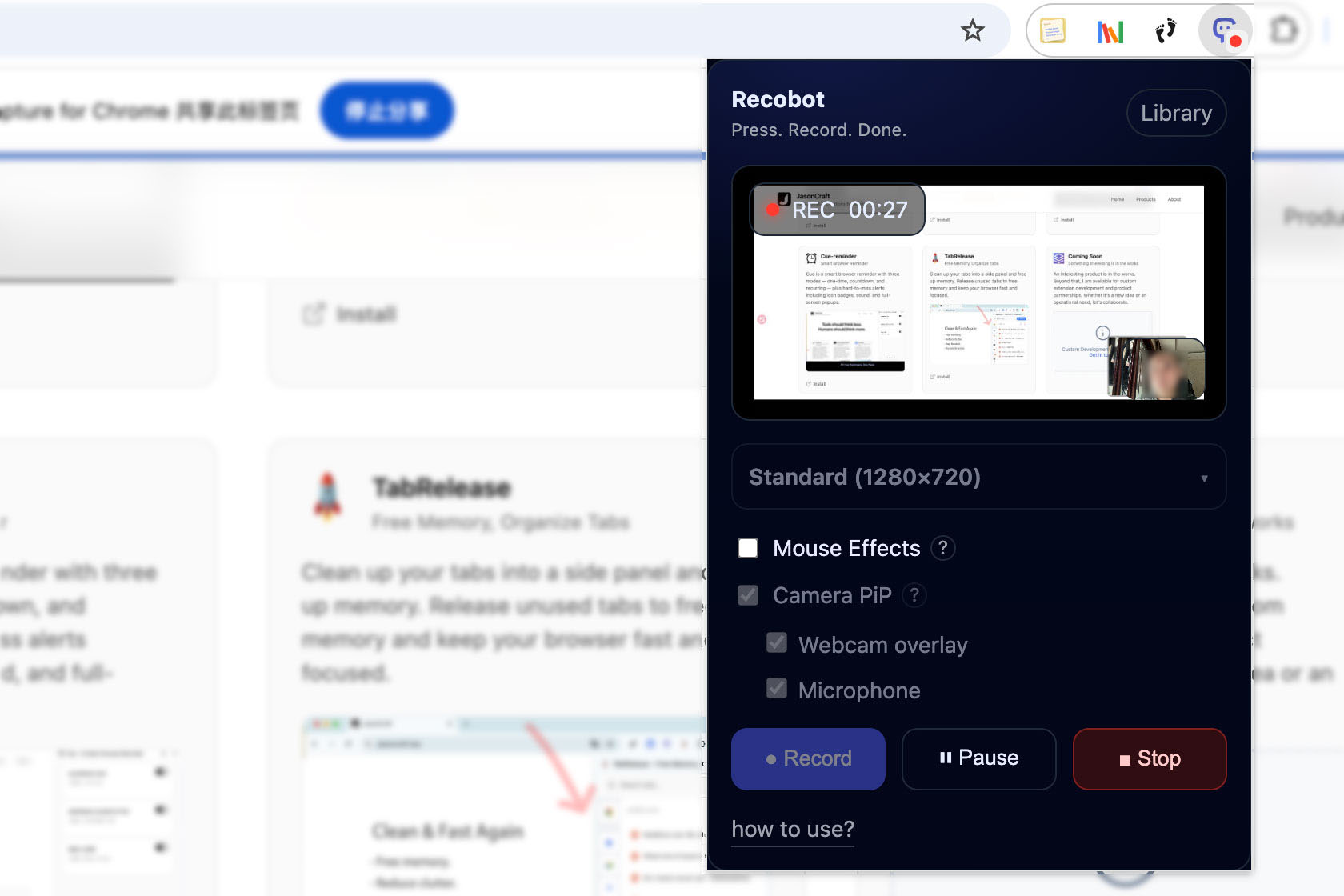
Recobot is a lightweight Chrome screen recorder with resolution presets, Camera PiP (camera/mic optional), and click ripple effects. Recordings are saved to a local Library for quick preview and export.
Start Share → auto record
Saved to Local Library (OPFS)
Overlays Camera PiP + Mouse Effects
Recobot – Popup
Popup preview

How it works

It's as simple as using your phone. Just click, select, and record.

Step 1
🔴

Click Record

Open the extension and hit the Record button.

Step 2
🖥️

Select Screen

Choose the tab, window, or screen you want to capture.

Step 3

Start Sharing

Click Share to start recording automatically.

Features

Built around clarity, lightweight performance, and control.

Resolution presets

Standard / High / Ultra presets for different recording scenarios.

Camera PiP

Overlay your camera on the recording. Drag to move and resize, WYSIWYG.

Camera & mic toggles

Record screen + mic only, or camera only, or both—your choice.

Mouse Effects

Injects click ripple effects into the active tab for clearer demos.

Local Library

Recordings are saved locally with preview, download, and delete.

No watermark

Exports clean videos by default—great for sharing and archiving.

Save instantly: review and export anytime

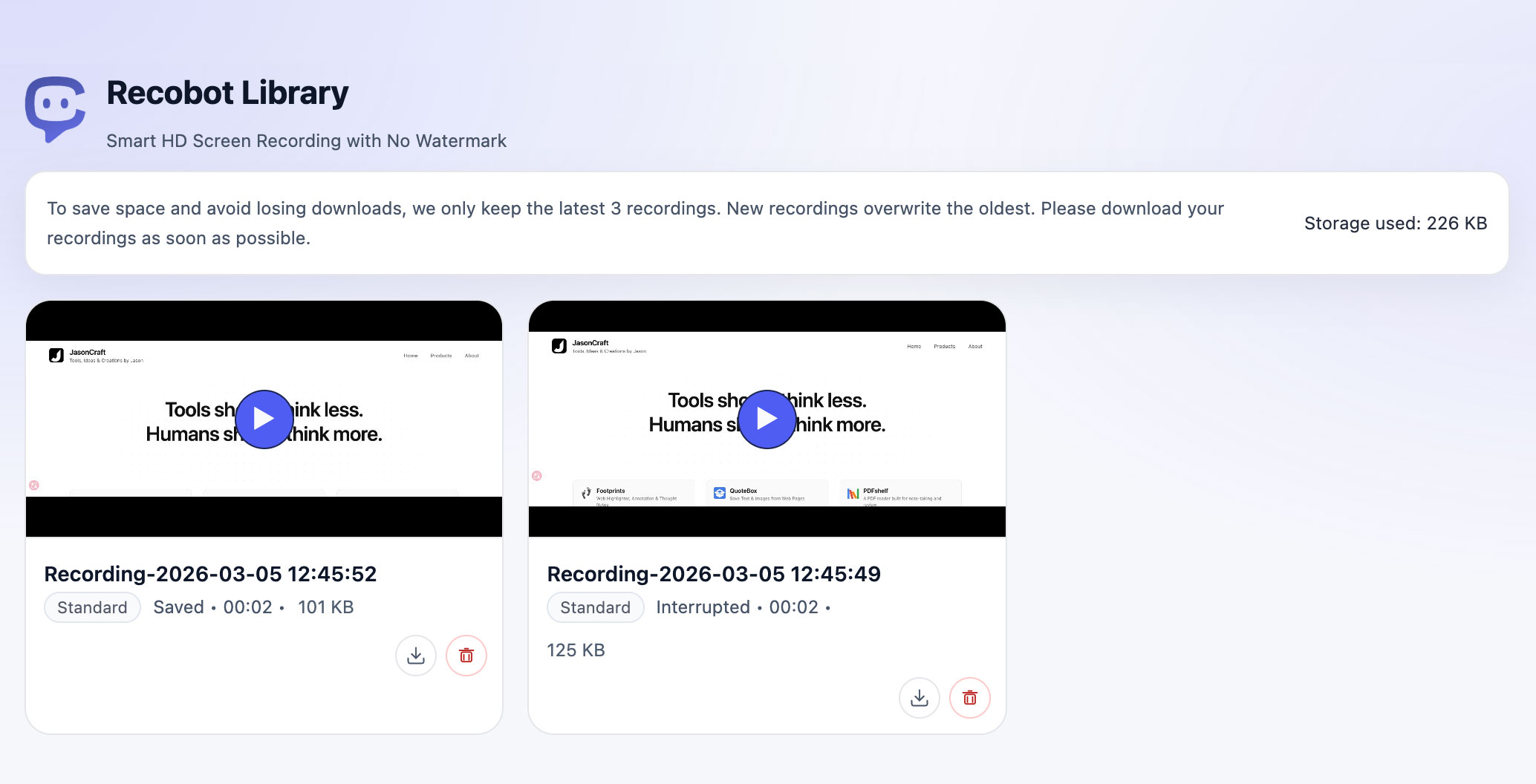
Each recording becomes a local Library entry with instant playback, download, and delete. To save space, it keeps only the latest 3 recordings.
  • Auto-saved locally (OPFS)
  • Preview playback with speed control
  • Download as a video file
  • Keeps the latest 3 recordings automatically
Library list view

Privacy & storage

Local-first storage to reduce dependency and upload risks.

Local-first

Recording data is stored in the browser (OPFS), without relying on external servers.

Storage under control

Keeps only the latest 3 recordings to avoid using too much disk space.

Permissions on demand

Camera/microphone permissions are requested only when you enable those features.

FAQ

Notes on recording, permissions, and page injection.

Why does recording start after I click Share?
Screen capture requires system confirmation. Recobot begins writing video data only after you confirm sharing.
Will Mouse Effects affect page clicks?
No. The effect elements are fixed and pointer-events: none, so they don't block your original interactions.
Why can't Mouse Effects be enabled on some pages?
Browsers block script injection on system pages (e.g., chrome://). It works on regular sites.
Where are recordings stored?
They are stored in the browser's local storage (OPFS). You can preview, download, or delete them in Library.
How long can I record?
There is no fixed limit. It depends entirely on your available storage space and system memory. For example, with 8GB RAM, we've successfully recorded up to 8 hours at Standard resolution. Please ensure you have sufficient memory for long sessions.
Why can't I seek through long recordings?
Long recordings may lack duration metadata in the file header. This is normal for streamed writes and does not affect the file integrity if you import it into video editing software.