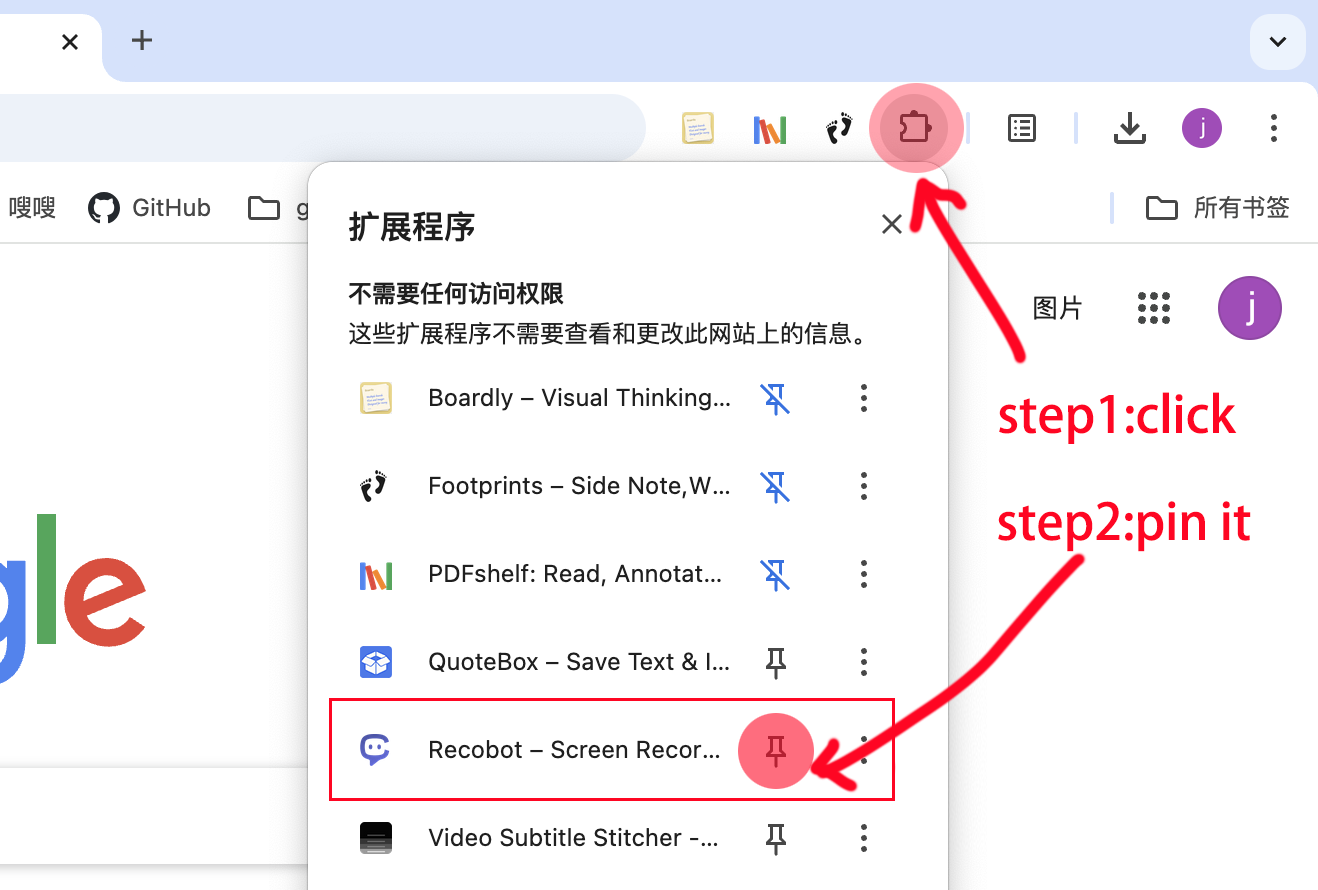
1) Pin Recobot to the toolbar
Pin the extension so you can open Recobot quickly while you work.
- Click the Extensions icon in Chrome.
- Find Recobot and click the pin button.
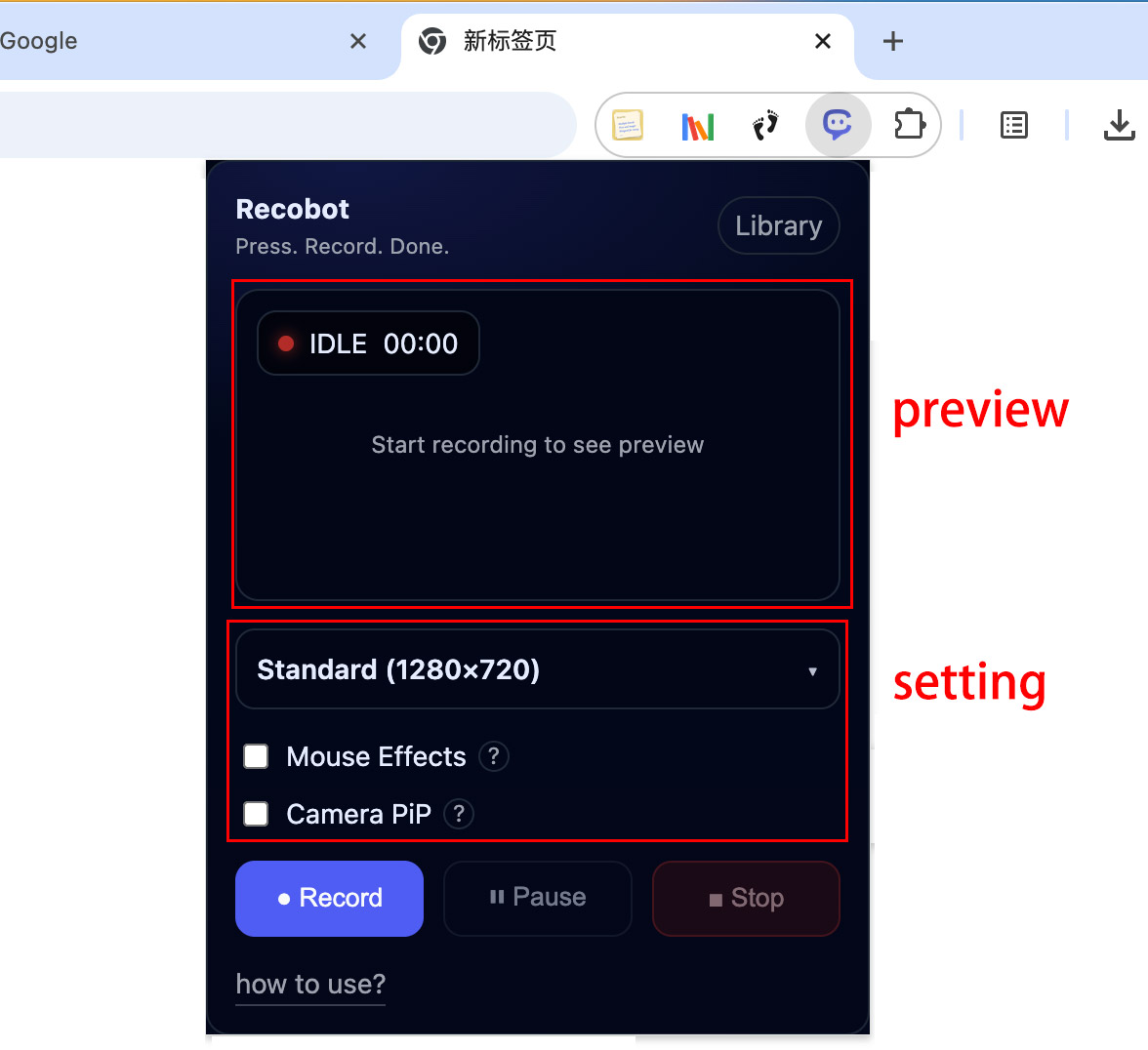
2) Popup page overview
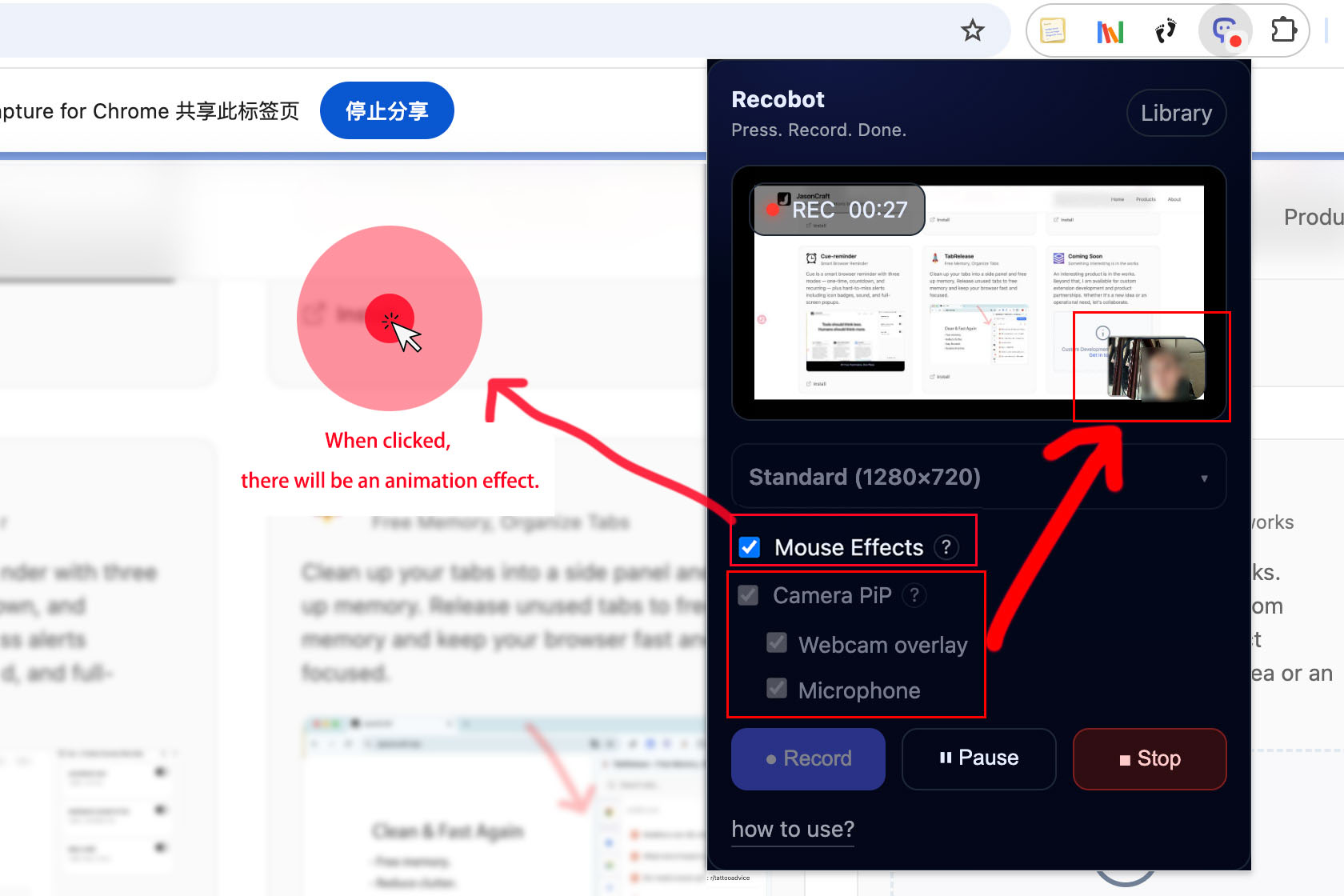
The popup is where you configure and start a recording.
- Choose a resolution preset (Standard / High / Ultra).
- Enable Camera PiP and/or Mouse Effects if needed.
Tip: For long recordings, make sure you have enough disk space.
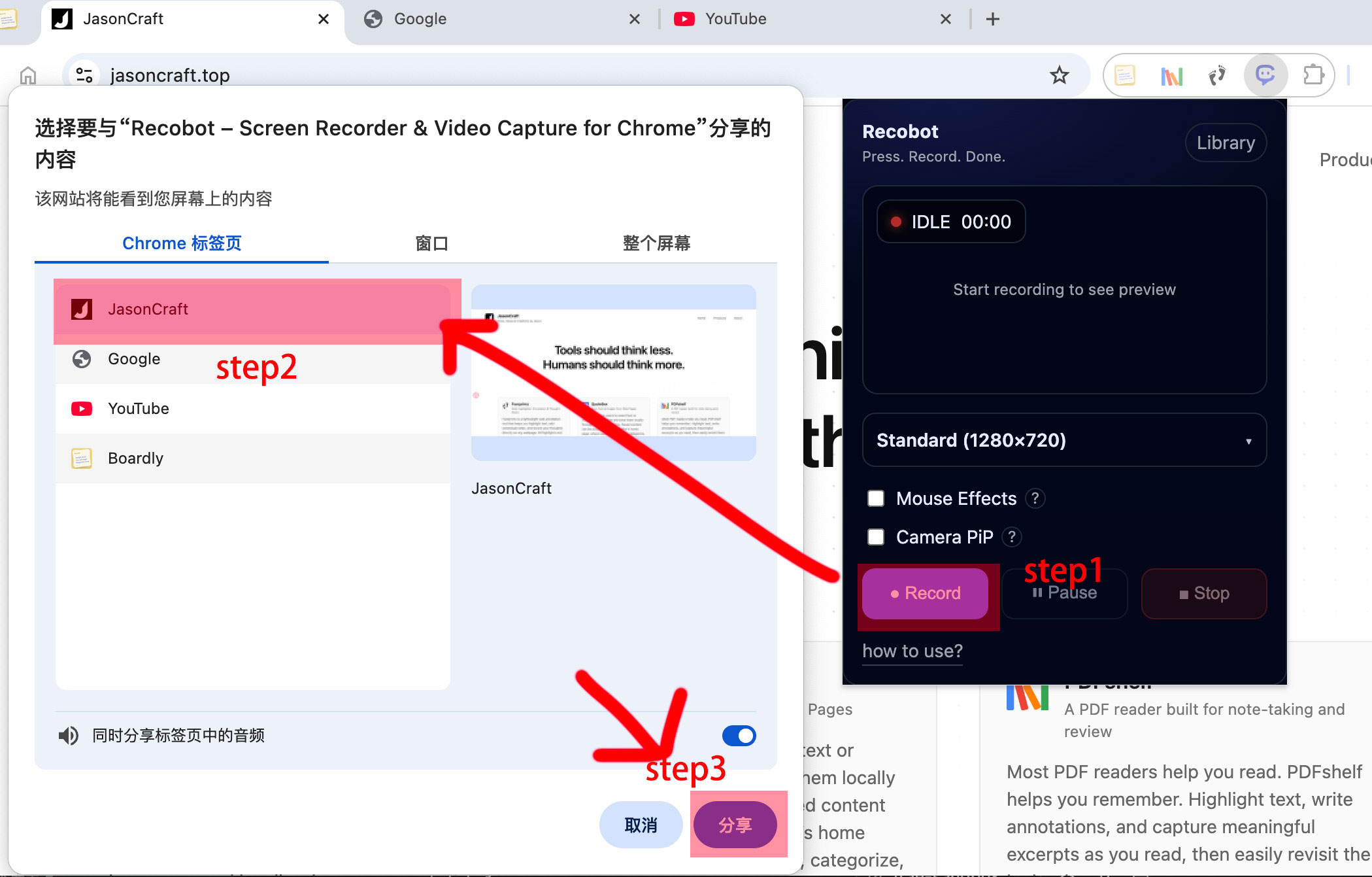
3) Click Record and choose what to share
When you click Record, Chrome shows a Share dialog.
- Select Tab, Window, or Entire Screen.
- Click Share to start automatically.
4) Start recording
Recobot records in the background. The popup can be closed while recording.
- Use Pause / Resume when needed.
- Click Stop to finish and save.
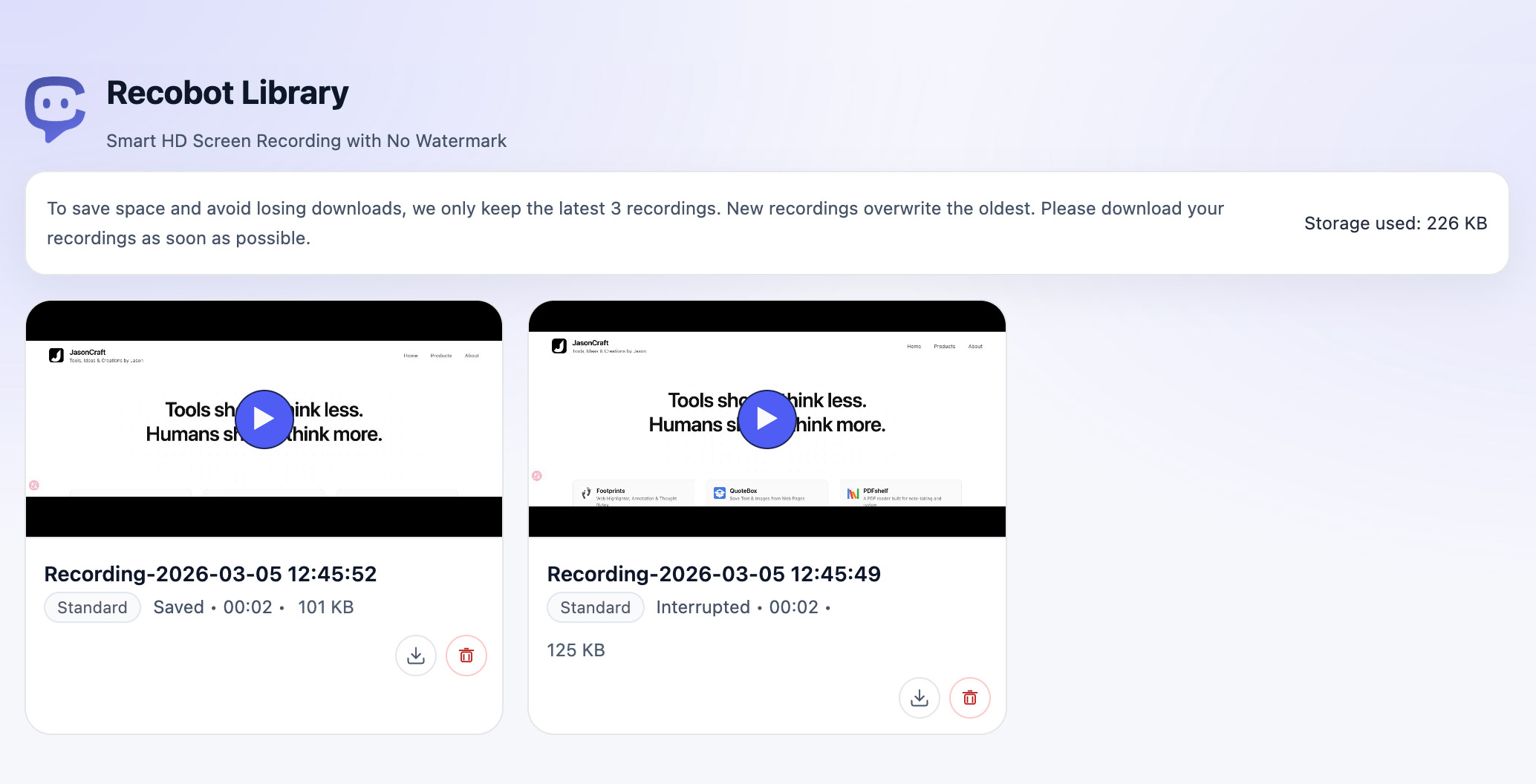
5) Finish and go to the Library
After stopping, Recobot shows a “Recording saved” dialog.
- Click Open Library to jump to your recordings.
- If you close the dialog, you can open the Library anytime.